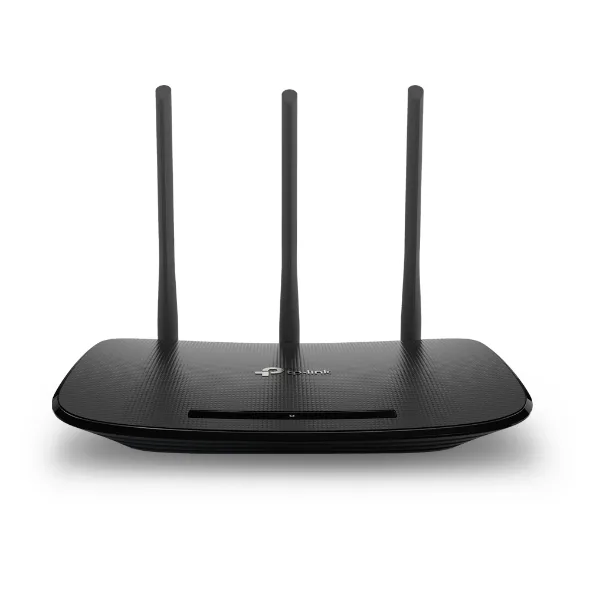
TP-Link TL-WR940N V6 Front (V4 and V6 have identical exterior)
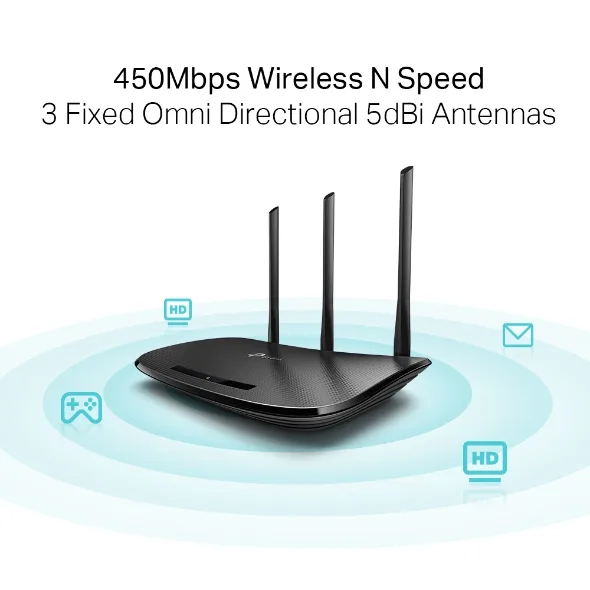
TP-Link TL-WR940N V6 Angle View
Confirm the hardware version, Mac static IP, firmware filename, Ethernet connection, and Reset recovery mode first.
Use this page for the native TFTP recovery path on TP-Link TL-WR940N V4 / V6. Before entering recovery mode, confirm router recovery IP 192.168.0.1, Mac or computer static IP 192.168.0.66, matching OpenWrt factory firmware, and the wr940nv6.bin filename. Recovery depends on the exact hardware version, firmware file, bootloader state, and whether the router enters recovery mode. Router Recovery helps prepare and check the macOS TFTP Server environment.
TP-Link TL-WR940N V6 Front (V4 and V6 have identical exterior)
TP-Link TL-WR940N V6 Angle View
Before you start, confirm these parameters match the device, firmware file, and recovery flow.
| Compatible model | TP-Link TL-WR940N V4 / V6 |
|---|---|
| Recovery method | Native TFTP recovery |
| Router recovery IP | 192.168.0.1 |
| Computer static IP | 192.168.0.66 |
| Firmware file | openwrt-ath79-tiny-tplink_tl-wr940n-v6-squashfs-factory.bin |
| Suggested TFTP filename | wr940nv6.bin |
| Common failure causes | Wrong computer IP, mismatched firmware filename, Reset not held for recovery mode, firewall blocking TFTP |
Prepare the Mac-side IP, firmware filename, and TFTP Server first, then enter the short Reset recovery window.
192.168.0.66, router recovery IP 192.168.0.1, and filename wr940nv6.binDuring recovery, the router uses 192.168.0.1 and sends its TFTP request to your computer at 192.168.0.66.
| Step | Action |
|---|---|
| 1 | Control Panel → Network and Sharing Center → Change adapter settings |
| 2 | Right-click "Ethernet" → Properties → Internet Protocol Version 4 (TCP/IPv4) |
| 3 | Select "Use the following IP address" |
| Step | Action |
|---|---|
| 1 | System Settings → Network → Ethernet → Details |
| 2 | IPv4 Configuration: Manual |
| 3 | IP Address: 192.168.0.66, Subnet Mask: 255.255.255.0 |
192.168.0.66 with subnet mask 255.255.255.0wr940nv6.bin| Step | Action |
|---|---|
| 1 | Download Tftpd64 and run it |
| 2 | Server interface: Select 192.168.0.66 |
| 3 | Current Directory: Select folder containing the firmware |
| 4 | Rename firmware to wr940nv6.bin for simplicity |
| Step | Action |
|---|---|
| 1 | Download Router Recovery for macOS |
| 2 | Set computer IP to 192.168.0.66 |
| 3 | Select the firmware folder and start the TFTP Server |
| 4 | Confirm the firmware filename is wr940nv6.bin |
Connect computer → router LAN port (any LAN port works)
Keep router powered off (unplug the power adapter)
Use a toothpick or needle to press and hold the Reset hole on the back of the router
While still holding Reset, plug in the power adapter
Continue holding Reset for 7-10 seconds, watch the LEDs
When the power LED blinks rapidly, firmware download is in progress — you can release Reset ✅
| Phase | Duration | LED Behavior |
|---|---|---|
| Firmware Download | 10-20 seconds | Rapid blinking |
| Writing to Flash | ~40 seconds | Occasional blinking |
| Auto Reboot | After completion | LED turns off then back on |
| Item | Value |
|---|---|
| Management Address | http://192.168.1.1 |
| Username | root |
| Password | Empty (no password needed for first login) |
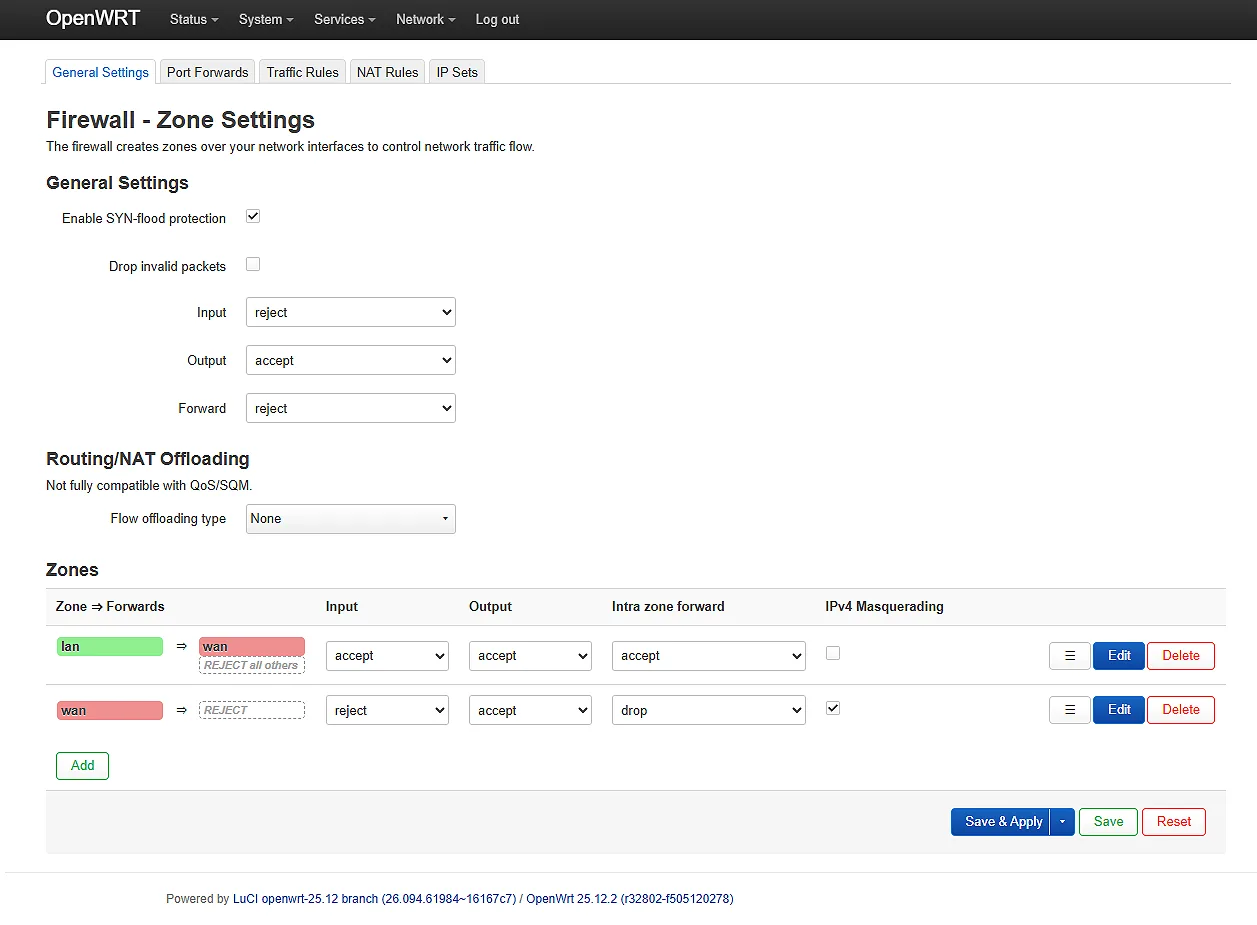
Change computer network back to automatic IP (DHCP), or manually set:
| Item | Path | Description |
|---|---|---|
| Set root password | System → Administration | Set a password to protect the device |
| Configure WAN | Network → Interfaces | Select WAN port internet type (DHCP/PPPoE/Static IP) |
| Set up Wi-Fi | Network → Wireless | Post-recovery daily network setup; use Ethernet during the TFTP recovery stage |
| Problem | Solution |
|---|---|
| LED not blinking rapidly | Check if computer IP is 192.168.0.66; check cable; disable firewall |
| TFTP timeout/failed | Rename firmware to wr940nv6.bin; try a different TFTP app |
| Router will not boot after flashing | Recheck hardware version and firmware file; verify file integrity before retrying TFTP recovery |
| Can't access 192.168.1.1 | Clear browser cache; check if computer IP is in 192.168.1.x range |
| Stock firmware says "Invalid firmware" | Must use TFTP method — stock Web has signature verification |
| Version | LED Indicator | TFTP Support | Notes |
|---|---|---|---|
| V4 | Multiple LEDs (LAN1-4, WAN, WLAN, SYSTEM) | ✅ Supported | Nearly identical hardware to V6 |
| V6 | WAN LED only | ✅ Supported | Target model of this tutorial |
| V6.1 | WAN LED only | ✅ Supported | May require connecting through a switch for TFTP |
Before holding Reset and powering on, confirm the Mac static IP, Ethernet connection, TFTP Server, firmware folder, and wr940nv6.bin filename are ready.
This tutorial is for learning and reference only. Recovery depends on the exact hardware version, firmware file, bootloader state, and whether recovery mode is entered successfully. Flashing firmware carries risks and may cause bricked devices or void warranty. Before proceeding:
Last updated: April 2026