Router Recovery 2.1 for macOS

Choose the right recovery method before you start

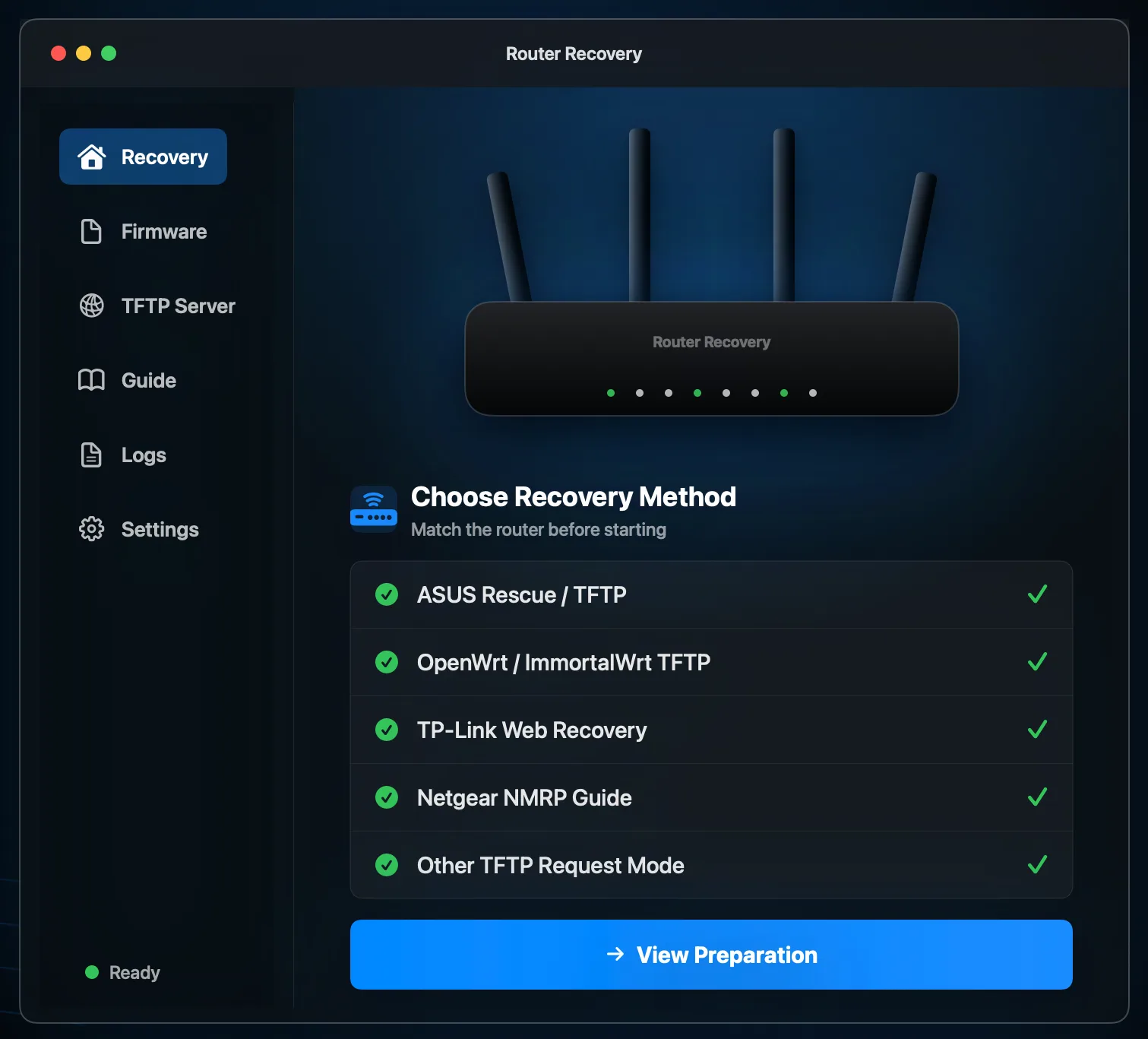
If a router stopped booting after a flash, Router Recovery 2.1 first helps separate ASUS Rescue / TFTP, OpenWrt / ImmortalWrt TFTP, TP-Link Web Recovery, NETGEAR NMRP Guide, and other TFTP request modes, then guides the matching Mac-side preparation.

  • ASUS selected profiles / verified reference devices
  • OpenWrt / ImmortalWrt TFTP Server checks
  • NETGEAR NMRP remains a guide boundary
2.1 recovery path check
Choose the matching recovery method first
Check Mac IP, firmware, and Ethernet by method
Separate App-supported, App-assisted, and guide-only paths

2.1 starts with choosing the right recovery path

Router recovery is not one universal button. Version 2.1 keeps the familiar macOS TFTP Server workflow, then adds clearer method boundaries so users do not treat Web Recovery, ASUS Rescue, standard TFTP, and NMRP as the same thing.

1

Recovery method selection

Start by identifying whether the router is using ASUS Rescue / TFTP, OpenWrt / ImmortalWrt TFTP, TP-Link Web Recovery, NETGEAR NMRP Guide, or a standard TFTP request mode.

2

Prepare the Mac by method

ASUS Rescue may need 192.168.1.10 and an active TFTP response, standard TFTP waits for a router request, and Web Recovery uses a local browser page.

3

Boundary paths should not mislead purchase

NETGEAR NMRP, TTL, bootloader, and hardware repair cases should be identified as advanced or guide-only paths, not presented as standard in-app transfer support.

Five Router Recovery 2.1 method entrances

Buttons, IP addresses, and upload behavior vary by router. The safer starting point is to match the method first, then prepare the firmware file, Ethernet connection, and Mac network settings for that method.

1

ASUS Rescue / TFTP

For selected profiles and verified reference devices, check Rescue Mode, Mac static IP, official firmware, and active TFTP response before upload.

2

OpenWrt / ImmortalWrt TFTP

Use this when the model guide asks the computer to run a TFTP Server and the router requests a firmware file during a short recovery window.

3

TP-Link Web Recovery

For AX55-like local Firmware Upgrade pages, use the app for preparation and checks, then upload the firmware in the browser recovery page.

4

NETGEAR NMRP Guide

Use the guide to recognize NMRP and avoid forcing an ordinary TFTP flow. Router Recovery does not run NMRP as a standard in-app transfer path.

5

Other TFTP Request Mode

For routers that explicitly request firmware from a TFTP Server, prepare Ethernet, static IP, firmware folder, and the expected filename first.

Reminder: Router Recovery 2.1 helps choose and prepare the recovery path. It does not promise guaranteed recovery, one-click recovery, or automatic firmware repair. Whether firmware is accepted, written, and booted still depends on the router model, firmware file, bootloader state, and recovery mode.

Useful for these 2.1 recovery cases

If you are not sure whether to use TFTP Server, ASUS Rescue Mode, Web Recovery, or NMRP, start by confirming the method, then move into specific preparation.

  • OpenWrt / ImmortalWrt TFTP Server firmware transfer.
  • ASUS Rescue Mode active TFTP checks for selected profiles / verified reference devices.
  • TP-Link Web Recovery local page checks before browser upload.
  • NETGEAR NMRP Guide boundary identification, to avoid retrying ordinary TFTP incorrectly.
  • Other models that explicitly request firmware from a TFTP Server.
H3C NX30 Pro router example H3C NX30 Pro example guide
TP-Link WR940N router example TP-Link TFTP recovery example

Confirm the path before continuing

The app is free to download. Standard TFTP and ASUS active TFTP flows continue to Full Unlock only after the app detects a clear recovery signal from your router. Full Unlock is a one-time in-app purchase for long-term use of the applicable guided transfer flows, including future recovery-path and reference-device updates; TP-Link Web Recovery and NETGEAR NMRP Guide are mainly for preparation, page checks, or boundary guidance. Actual pricing is shown by the Mac App Store for your region.

Download Router Recovery for Mac

Why check the recovery signal first?

During router recovery, the key question is whether the device really entered the matching recovery path: standard TFTP watches for a router request, ASUS active TFTP checks rescue response, Web Recovery checks a local page, and NMRP should first be confirmed as a boundary guide.

  • If no request or response is detected, keep waiting or review the matching troubleshooting guide.
  • After purchase, if the recovery window has closed, the app returns to waiting for the next request or response.
  • Purchases are handled by Apple StoreKit and support Restore Purchases.

Frequently asked questions

The app is a local recovery helper, not a promise that every router can be restored.

Does it actively send firmware to the router?

It depends on the selected method. Standard TFTP waits for the router to request a file, ASUS Rescue / TFTP checks rescue response and guides upload for selected profiles, TP-Link Web Recovery upload happens in a browser page, and NETGEAR NMRP Guide is not an in-app automatic transfer path.

Does the app include firmware files?

No. You need to download the correct firmware from your router vendor, OpenWrt, ImmortalWrt, or another trusted source.

Does Router Recovery 2.1 support NETGEAR NMRP?

No. NETGEAR NMRP is treated as a guide and boundary path, so users do not mistake it for standard TFTP Server recovery. Router Recovery does not package NMRP as a normal App transfer workflow.

Is recovery guaranteed?

No. Recovery depends on the device model, firmware compatibility, network settings, timing, and whether the router successfully enters recovery mode.

Can I use it without the internet?

Unlocked users can continue using the core local recovery flow. First-time purchase, purchase restore, and online tutorials require internet access.

Turn your Mac into a clear recovery workbench

Choose the recovery method first, then prepare firmware, Mac IP, Ethernet, and the recovery window. Router Recovery 2.1 gives ASUS, OpenWrt, TP-Link, NETGEAR, and other TFTP cases clearer boundaries with fewer guesses.

Download Router Recovery for Mac