Prepare first, then wait
Select OpenWrt, ImmortalWrt, or vendor recovery firmware. The app prepares an accessible local copy without modifying your original file.
If a router stopped booting after a flash, Router Recovery gives you a TFTP Server workflow with clearer guidance: choose the firmware file, check the temporary Mac IP, and wait for the router's real recovery request.
Router Recovery is still a TFTP Server for recovery workflows, but it is not just a blank file-server screen. It is organized around the moment when a router asks your Mac for a firmware file.
Select OpenWrt, ImmortalWrt, or vendor recovery firmware. The app prepares an accessible local copy without modifying your original file.
The app moves forward only after detecting an actual read request from the router, so you are not guessing whether the device entered recovery mode.
From waiting for the router to transferring firmware, each status is phrased around the recovery workflow instead of raw TFTP jargon.
Buttons and expected IP addresses vary by router model, but the common pattern is simple: your Mac gets ready, and the router comes to request the firmware.
Choose a trusted recovery firmware file that matches your router model. This prevents the most common mismatch. You should see the model or hardware version reflected in the source guide.
Temporarily set the Mac IP required by the router guide, such as 192.168.1.254. This lets the Mac talk to the router in recovery mode. You should see Ethernet connected.
Select the firmware in the app and start waiting before powering the router. This keeps the Mac ready for the short recovery window. You should see a waiting status.
Put the router into recovery mode and watch for the request. This confirms the router reached the recovery flow. You should see the requested filename or connection status.
Confirm the transfer and wait for completion. This sends the selected file only when the router asks for it. You should see transfer progress or a completed status.
If your guide asks your computer to run a TFTP Server and wait for the router to download a specific firmware filename, Router Recovery is designed for that workflow.
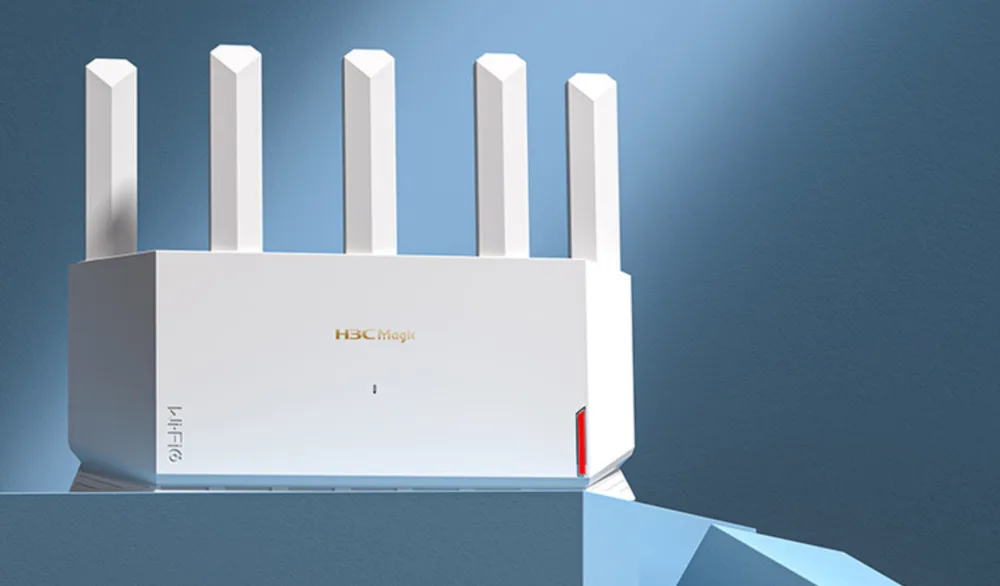 H3C NX30 Pro example guide
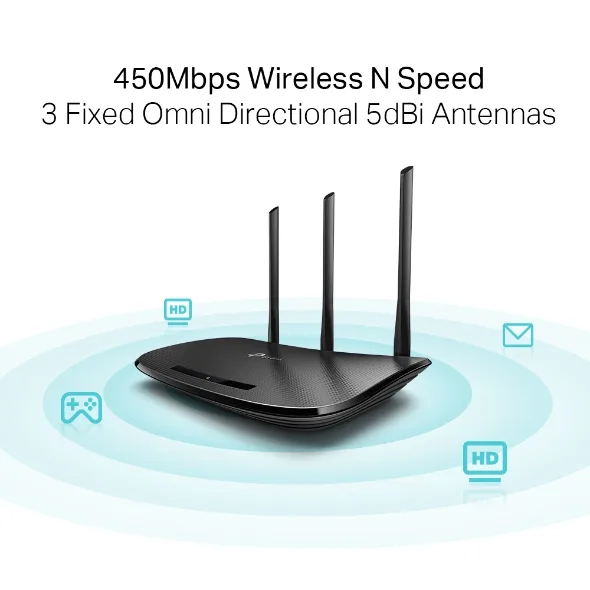 TP-Link TFTP recovery example
The app is free to download. If the recovery workflow fits your router, the guided transfer flow is available with a one-time in-app purchase. Actual pricing is shown by the Mac App Store for your region.
Download Router Recovery for MacDuring router recovery, the most important question is whether the router really entered the TFTP recovery flow. Router Recovery waits for that real request first, then shows the next step.
The app is a local recovery helper, not a promise that every router can be restored.
No. The core flow is passive: the app waits for the router to ask for a file in recovery mode, then responds with the selected firmware.
No. You need to download the correct firmware from your router vendor, OpenWrt, ImmortalWrt, or another trusted source.
No. Recovery depends on the device model, firmware compatibility, network settings, timing, and whether the router successfully enters recovery mode.
Unlocked users can continue using the core local recovery flow. First-time purchase, purchase restore, and online tutorials require internet access.
Prepare firmware, wait for the request, confirm the status, and complete the transfer with fewer guesses.
Download Router Recovery for Mac